
Workspace settings
Configure company details, model providers, runtime access, connected apps, security, and members from the Yodu workspace settings area.
Organization settings control the company boundary. Open them from the workspace sidebar.
General
Use Organization settings → General for the workspace identity and organization-level account controls. Keep the company name and slug recognizable, especially when one user belongs to several workspaces.
The workspace switcher uses this identity throughout the app.
Yodu settings
Use Organization settings → Yodu for workspace-scoped model provider access.
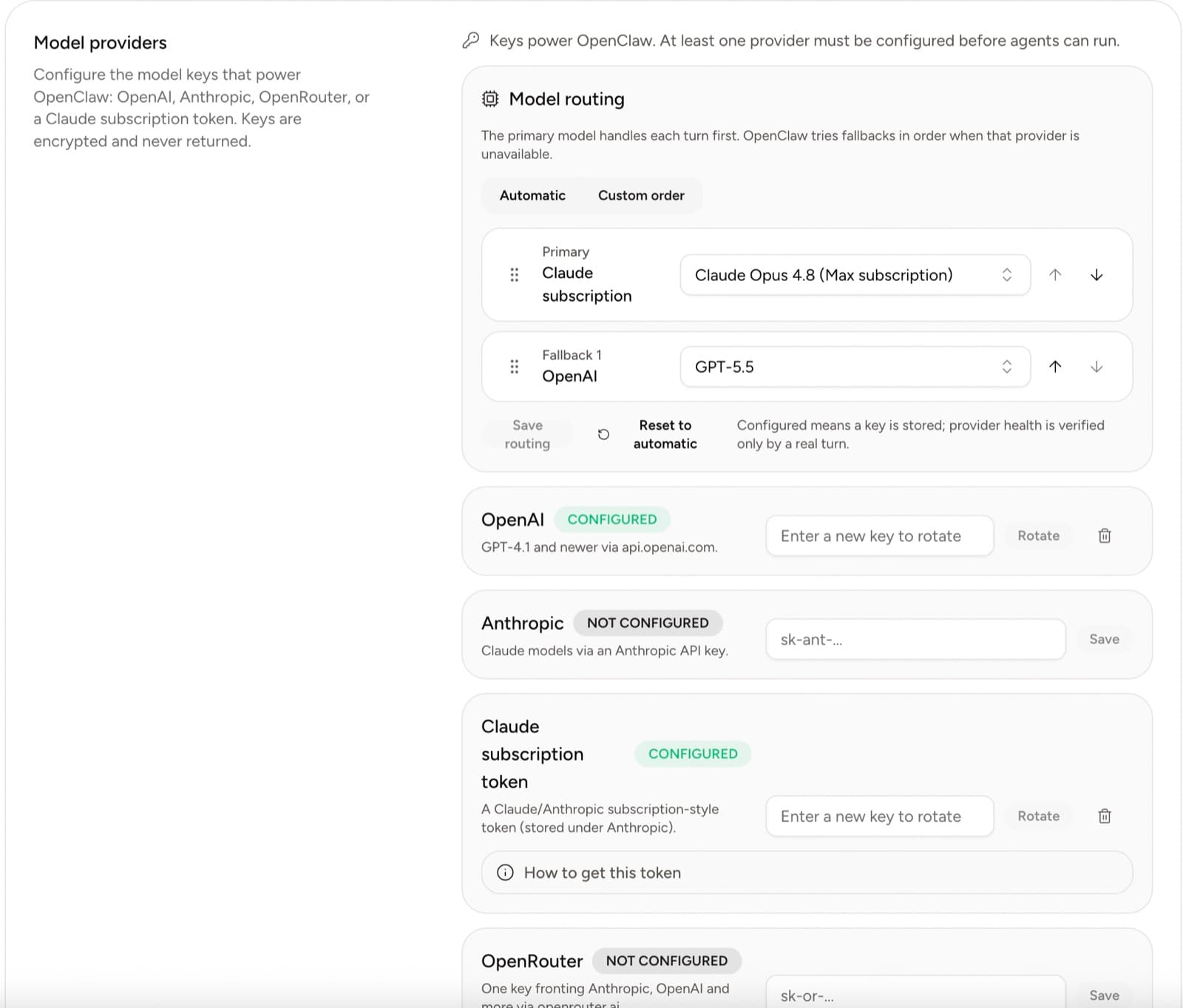
The current provider options are:
- OpenAI
- Anthropic
- supported Claude subscription access
- OpenRouter
Add or rotate provider access from this page. Saved secrets are encrypted and are not displayed again.
After configuring a provider, select an available model from the employee's channel or model policy. The running workspace reloads after a model change.
Members
Use Organization settings → Members to invite people, change member roles, remove members, or leave a workspace.
Owners and admins can manage member roles. The owner role is protected in the member list.
See Member access and roles before inviting someone to a workspace with sensitive connected accounts.
Memory and files are managed separately
Do not place company context or provider secrets in settings fields that are not designed for them.
- Company facts belong in Memory.
- Uploads and generated artifacts belong in Files.
- Provider secrets belong in Yodu settings.
- App authorization belongs in Tool access.
- Employee instructions belong in Employee config.
This separation makes access and updates easier to understand.
Recommended setup order
- Confirm workspace identity and owner.
- Add the company profile in Memory.
- Configure one model provider.
- Invite the human members who need access.
- Hire the first AI employee.
- Connect the first business app.
- Confirm the account's switch is enabled for that employee and disabled where it is not needed.
- Test one task before adding more settings.
Secret rotation
When rotating provider access:
- pause dependent recurring work when possible
- enter the replacement value
- select the rotate action
- test one employee message
- run one representative task
- resume schedules after the test passes
Never paste the old or new secret into chat, memory, files, task descriptions, or employee configuration markdown.
Workspace review
Review settings whenever:
- the workspace owner changes
- a human member leaves
- the company changes model providers
- a provider key is rotated
- a connected account changes ownership
- a new client or company boundary is introduced
Use a separate workspace when human access, company memory, or credentials must be isolated.