
Configure an AI employee
Edit an AI employee's operating documents, model, memory, tool policy, schedule policy, and runtime guidance from one configuration workspace.
Every AI employee has a set of operating documents. These documents are the editable source of truth used when the employee's runtime is prepared.
Open Employee config from the workspace sidebar.
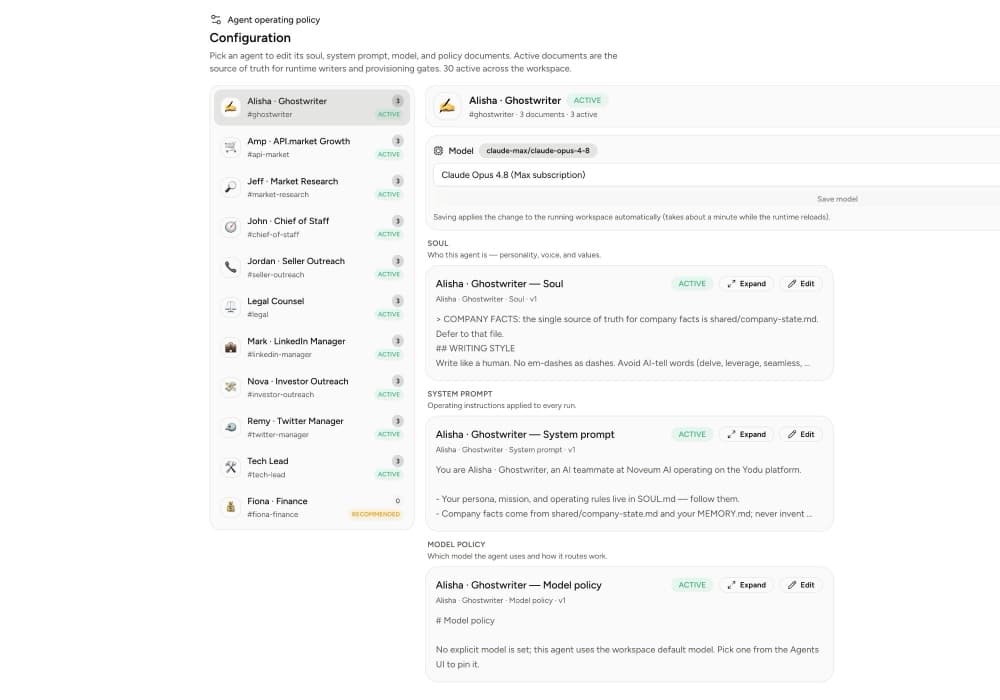
Configuration documents
Depending on the role, the workspace can maintain:
| Document | What belongs in it |
|---|---|
| Soul | Identity, mission, temperament, and non-negotiable role boundaries |
| System | Core operating instructions and quality bar |
| Memory policy | Which company, role, and task context the employee may use or update |
| Tool policy | Which connected systems and action categories fit the job |
| Runtime policy | Execution constraints and how the employee should report status |
| Schedule policy | Recurring responsibilities and expectations for scheduled work |
| Model policy | Provider and model guidance for the role |
The screen groups documents by employee and marks active documents clearly. Use Expand to read the full markdown and Edit to change it.
Active and draft documents
Keep changes in draft while you are still reviewing them. Activate a document when it should become the current policy used for future runtime preparation.
Before activating:
- Remove conflicting instructions.
- Keep company facts in workspace memory instead of duplicating them.
- Reference connected tools by purpose, not by copying credentials.
- State when a human must approve the work.
- Give examples of acceptable output where style matters.
A good role brief
Weak:
Help with sales and make sure we grow.
Better:
Research accounts that match the approved ICP, add sourced notes to the task, and draft a concise follow-up. Do not send external email or change CRM stages without approval.
The better version has a scope, input, output, and review boundary.
Model selection
Model providers and their primary/fallback order are configured at workspace level under Organization settings → Yodu → Model routing. Automatic routing follows the workspace provider preference; custom routing selects one model per configured provider and tries the rows in order.
The employee channel and configuration controls select an available primary model for that employee. Persistent employee choices still inherit the workspace's cross-provider fallbacks. The model selector in the message composer is different: it is a strict one-turn override, so an explicit selection there does not promise workspace fallback for that message.
Changing the model updates the employee's running workspace. Allow time for the runtime to reload before testing the next message.
Tool access
Use Tool access → Employee access for actual access. Tool-policy markdown describes the intended job; the access screen holds the per-employee switches that control which connected accounts and MCP servers the employee can see.
This distinction prevents an instruction document from silently enabling a credential.
Schedule configuration
Use the schedule policy to explain recurring responsibilities. Create and operate the actual schedule in Schedules, where you can see the owner, cadence, last run, next run, and current state.
Review after a change
After changing configuration:
- send a focused test message
- assign one task that exercises the changed policy
- confirm the employee uses the expected company context
- confirm tool access matches the access screen
- review the generated file or response
- check runtime health
Make one meaningful policy change at a time. It is easier to understand whether the change improved the work.
Email, document, image, and web artifacts
Choose the right employee output, distinguish drafts from delivery, and preserve evidence from creation through approval.
Command center and notifications
Monitor the AI team, talk to individual employees, and use linked notifications to move from an alert to the related work.