
Workspaces and AI employees
Understand how companies, human members, AI employees, channels, tasks, and permissions fit together so work stays scoped in Yodu.
Yodu uses two primary building blocks: the workspace and the AI employee.
Workspace
A workspace represents one company or client boundary. It contains:
- company profile and shared knowledge
- human members
- AI employees and their channels
- tasks and approvals
- schedules
- files and generated artifacts
- app connections and custom MCP servers
- per-employee tool switches
- provider and runtime settings
Use a separate workspace when the company context, credentials, client data, or human access should be separate.
AI employee
An AI employee is a named role configured to perform a specific kind of work. It has:
- a display name and job title
- role instructions and success criteria
- access to company and role context
- installed skills
- enabled tools and MCP servers
- a model selection
- assigned tasks and recurring schedules
- files and work history
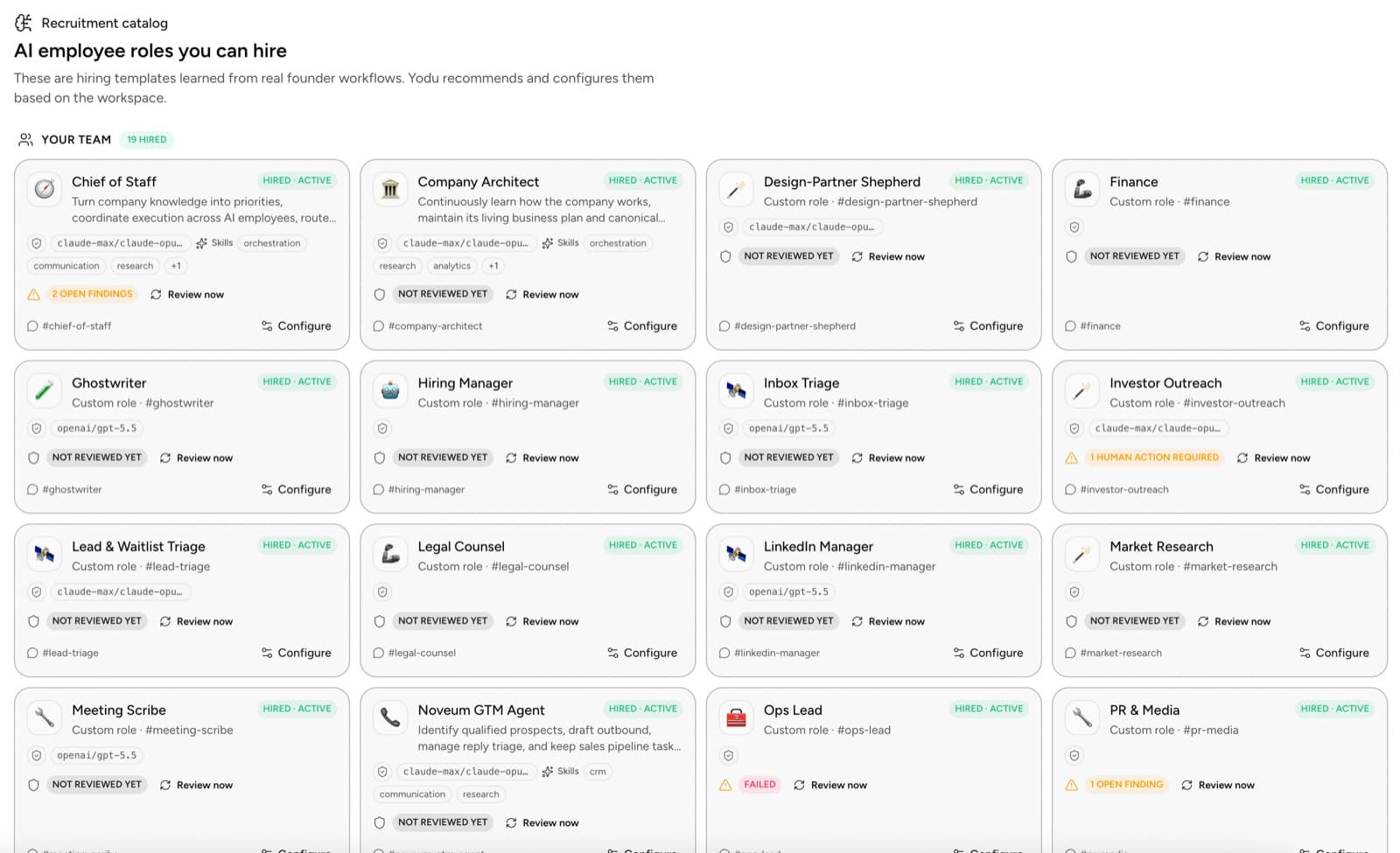
Start with the job, not the personality. A useful role has a clear input, a reviewable output, and a human escalation path.
Employee channels
Every AI employee has a focused channel. Use it to:
- brief the employee
- answer a question about a task
- ask for a status update
- attach or reference source material
- correct the approach
- mention another employee for a handoff
Chat is the communication surface. The task board remains the source of truth for meaningful work and status.
Team lead
The team lead coordinates company setup and cross-functional work. It can help identify missing context, recommend roles, and keep the team aligned. It is not the entire product; specialist employees own the work in their functions.
Human members
Human members can be invited to the workspace and given an owner, admin, or member role. Use human roles to control who can:
- change workspace settings
- invite or remove members
- manage provider secrets and connected accounts
- configure AI employees
- assign and review tasks
- approve sensitive actions
See Member access and roles for the current permission model.
Tool access and approvals
Two separate controls keep employee work safe:
| Control | What it decides | Granularity |
|---|---|---|
| Tool switch | Whether this employee sees this tool at all | Per employee, per tool, on or off |
| Approval gate | Whether a specific external or irreversible action runs right now | Per action, decided by a human |
Every connected app and custom MCP server is enabled per employee by default; disable the switch to hide it entirely. Choose the employee permission mode separately. In Ask first, external or irreversible actions request a human decision in chat or the Approvals queue; broader autonomy can allow actions without that decision.
See Tool access per employee and Approvals and autonomy.
One example
A workspace connects one Gmail account. The support lead and sales operator keep Gmail enabled to prepare replies and follow-ups; the research analyst has it disabled and never sees Gmail at all. With Ask first selected, a proposed send requests approval. One connection, per-employee visibility, one gate — without exposing the credential in employee chat.