
Approvals and autonomy
How Yodu's human-in-the-loop model works — what triggers an approval, the inline chat card and the queue, Allow once / This session / Deny, and how the gate composes with per-employee tool switches.
Employee permission modes determine when prepared work requires a human decision. Use Draft only or Ask first for the first responsibility, and verify the behavior with a harmless test before expanding access.
| Employee mode | Intended behavior |
|---|---|
| Draft only | Research and prepare drafts without executing external actions |
| Ask first | Request approval for external or irreversible actions |
| Auto | Permit routine actions while retaining destructive-action review |
| Full autonomy | Broader execution, including irreversible actions; requires deliberate confirmation |
Tool switches, provider scopes, approval policy and current permissions still apply independently. A mode is not a grant to another workspace or an unavailable tool.
What triggers an approval
With Ask first selected, action classes that require review include:
| Action class | Examples |
|---|---|
| Send | An email to a customer, a Slack message outside the team |
| Post or publish | A blog article, a social post, a CMS change |
| Spend | A refund, a charge, a subscription change |
| Delete | Removing records, files, or resources in a connected system |
| Change external state | A CRM lifecycle update, a repository write, a production change |
Reading, researching, drafting, and producing files inside the workspace do not stop for approval — that is the work you hired the employee to do. Under Ask first, review happens before the proposed external or irreversible action.
Where the decision appears
The same request surfaces in two places:
- The inline card in chat. If you are in the employee's channel, the request appears in the conversation with the prepared action and its context. Decide right there and the conversation continues.
- The Approvals queue. Every pending request also appears under Approvals, with the linked task and evidence. Use the queue when you were not watching the chat, or to review several requests in one sitting.
Either surface settles the request; you do not need to answer in both.
The three decisions
| Decision | Meaning | Use it when |
|---|---|---|
| Allow once | Run exactly this action, one time | The action is correct and one-off |
| This session | Allow this kind of action for a few hours | You are iterating with the employee and would approve each one |
| Deny | Do not run it; the employee keeps the context and can revise | The action is wrong, premature, or missing evidence |
This session is an allowance, not a policy change. It expires after a few hours, and it appears under remembered permissions in Approvals, where you can revoke it early. Settled decisions stay in the audit history.
After the decision
- On Allow once or This session, the employee resumes immediately: the action runs, the result lands in the channel or task, and work continues without a re-prompt.
- On Deny, the action does not run. The employee keeps its context — tell it what was wrong in the channel, or record the correction on the task, and it revises rather than starting over.
A deny is feedback, not a failure. Denying a premature send and correcting the draft is the loop working as designed.
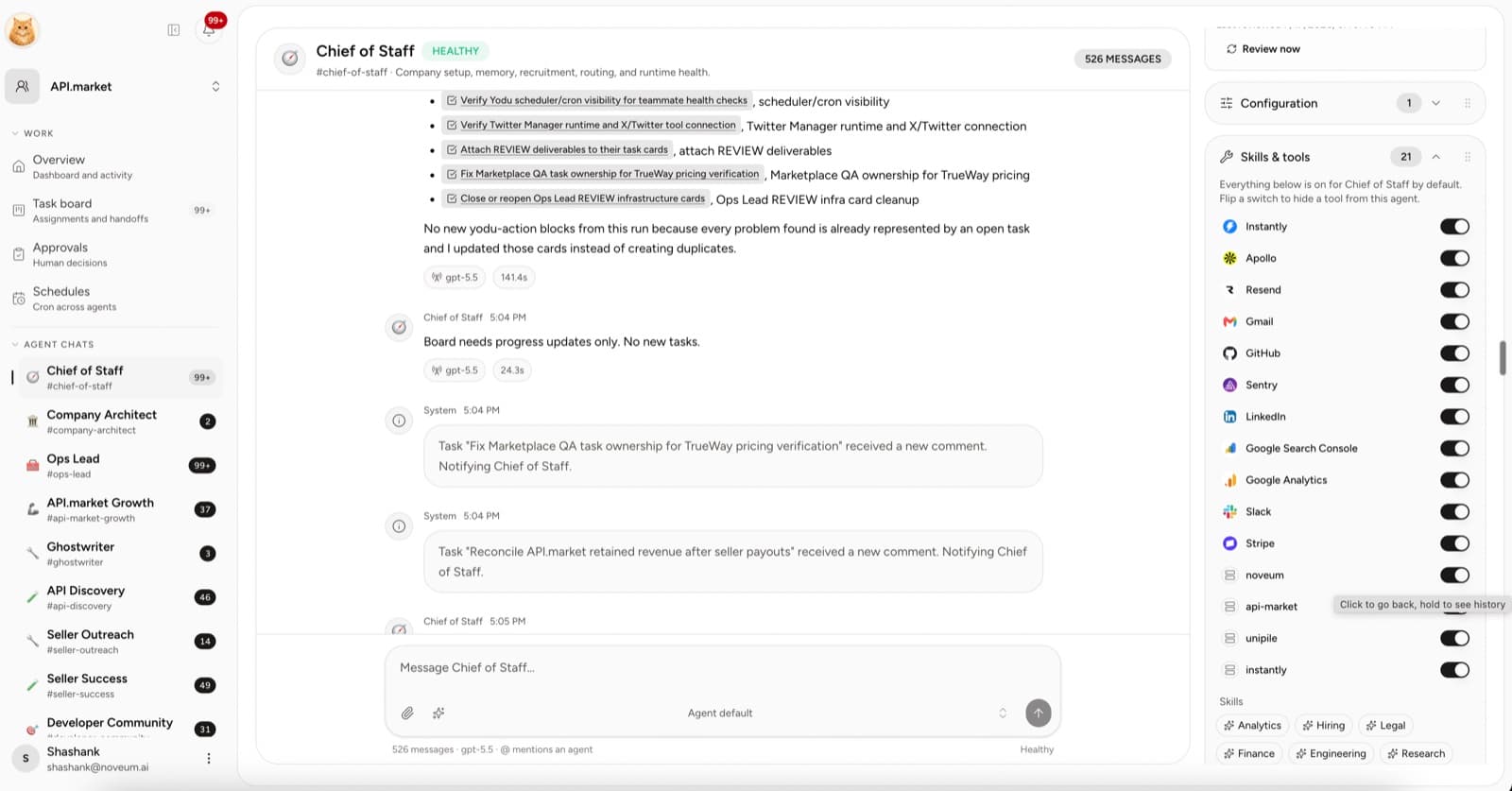
How this composes with tool switches
Tool access and approvals answer different questions:
| Layer | Question it answers | Granularity |
|---|---|---|
| Tool switch | Should this employee see this tool at all? | Per employee, per tool, on or off |
| Approval gate | Should this specific action run right now? | Per action, decided by a human |
A disabled tool never reaches the gate — the employee cannot see it, so nothing is prepared. An enabled tool remains subject to the employee's permission mode, current policy and provider permissions. There is no per-tool autonomy tier in the switch: configure the employee mode separately.
Enabling a connection is an access decision. Check both the connected account's scope and the employee's permission mode, then run a bounded test. See Tool access per employee.
Review habits
- Check Approvals at least daily; a request waiting for days blocks the task behind it.
- Read the linked task and evidence before allowing — the card shows the prepared action, but the task shows why.
- Prefer Allow once until a workflow has produced several correct requests in a row; then use This session while actively iterating.
- Revoke session allowances you no longer need rather than letting them expire quietly.
- When you deny, say why in the channel — the correction is what improves the next request.
Continue with Task board and approvals for how approvals attach to the work lifecycle, and Security and trust for the layers around the gate.