
Connect a Composio app
Find an app in Yodu's Composio catalog, authorize and verify your account, then decide which AI employees can see it.
Yodu uses Composio as its primary catalog and account-connection layer. Composio publishes toolkits for more than 1,000 apps; the catalog shown in Yodu is loaded from the available toolkits.
1. Find the app
Open Tool access → App catalog.
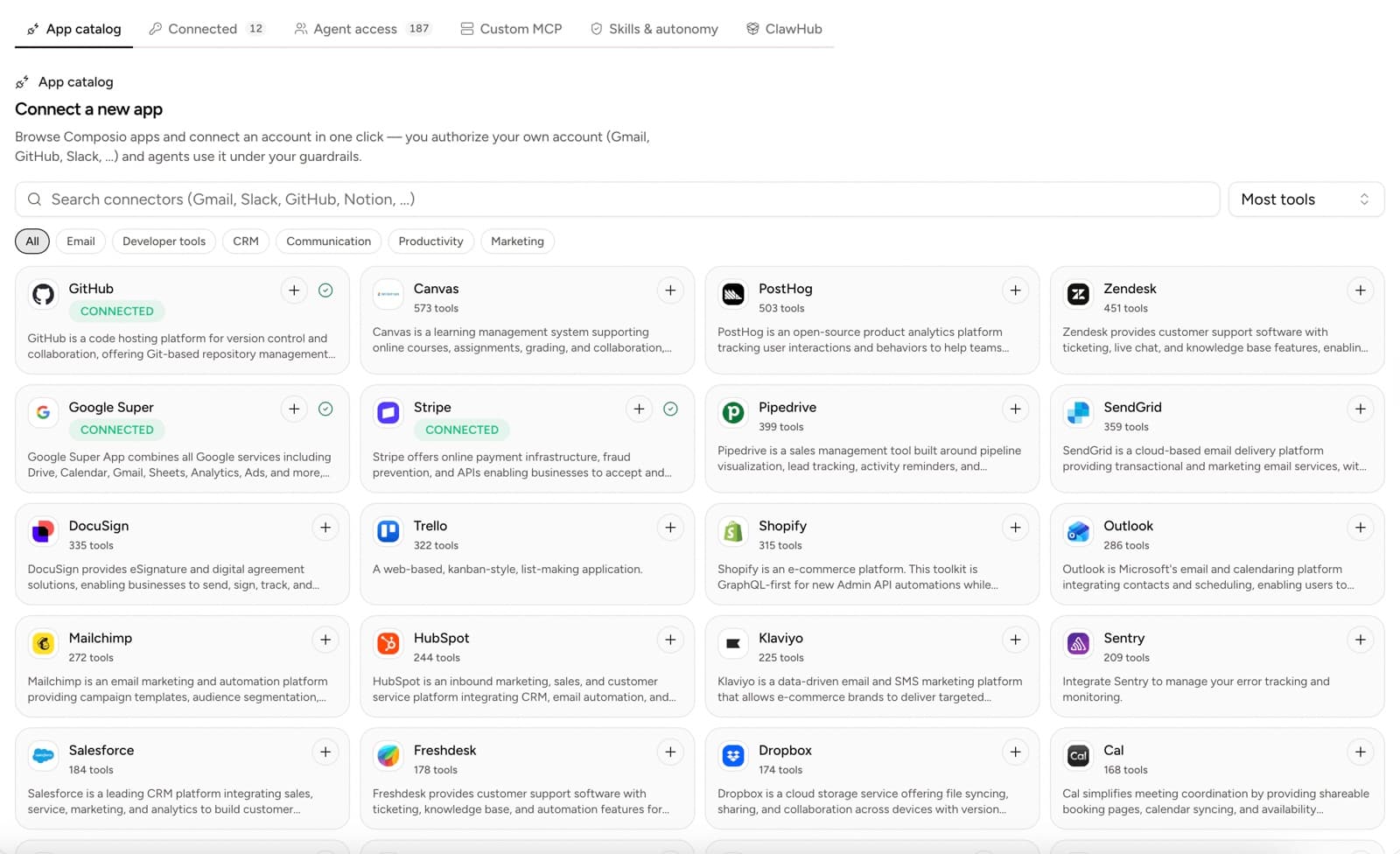
Search by app name or filter by category. A catalog card may show:
- the available tool count
- connected state
- authorizing or reconnect state
- the number of connected accounts
- a short provider description
Open the app details when you need to understand the available actions before connecting.
2. Authorize your account
Select the add button. The provider may use OAuth, an API key, or another account-specific flow.
Complete authorization using the account that belongs to this workspace. Do not authorize a personal inbox or production account unless the employee's job requires it.
When the flow returns to Yodu, open Connected and confirm the account appears.
3. Label multiple accounts clearly
One provider can hold multiple accounts. Use recognizable labels such as:
- Founder Gmail
- Support inbox
- Sales GitHub
- Production Stripe
The employee's switch should point to the intended account, not merely the provider name.
4. Scope access per employee
Open Employee access. The new account starts enabled for every employee.
Confirm:
- the employee whose job needs the app
- the connected account behind the switch
- that the switch is disabled for employees who should not see it
Start conservatively. Reading and drafting are usually safer first tests than external sends, billing changes, or repository writes — use Ask first and verify that a proposed external action requests approval.
5. Test with a real task
Create a small task that exercises the connection.
| App | Safer first test |
|---|---|
| Gmail | Read a specific thread and prepare a reply draft |
| Google Calendar | Summarize the next day's meetings |
| HubSpot | Read one contact and draft an account note |
| GitHub | Summarize one issue or pull request |
| Stripe | Read one customer or subscription record |
| Slack | Read a test channel or prepare an internal update |
Confirm the employee uses the expected account and that an approval card appears before any external action runs.
Connection states
| State | What to do |
|---|---|
| Connected or active | Run the scoped first test |
| Authorizing or connecting | Finish the provider flow or wait for it to return |
| Reconnect | Repeat authorization for that account |
| Not verified | Run the available verification or a safe read test |
Remove access safely
Disable the employee's switch first when only one role should lose access. Remove or reconnect the account only when the workspace connection itself is wrong or no longer valid.
See Connected accounts and employee access for the complete mental model.