
Connection checklist
A practical checklist for safely adding, verifying, granting, testing, and reviewing a business app connection in Yodu.
Use this checklist for every new app or account.
Before connecting
- The first employee and task are already defined
- You know which account should be authorized
- You know whether the employee needs read, draft, or external-action access
- A human owner can review the first test
- The test will not affect real customers or production data
Connect the account
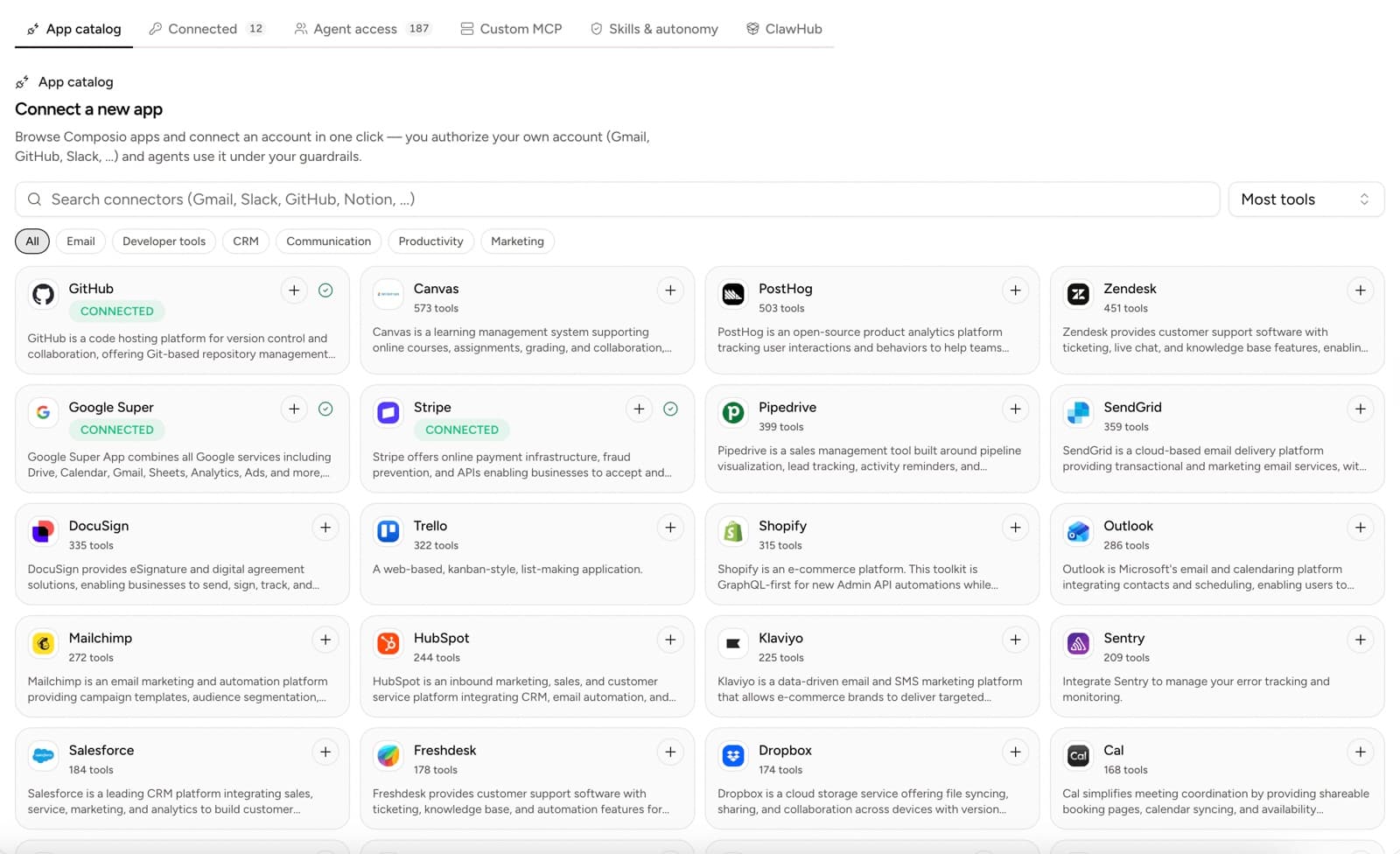
- Open Tool access → App catalog.
- Search for the provider.
- Review the app details and available actions.
- Select the add button.
- Complete the provider authorization flow.
- Open Connected and confirm the account appears.
- Give multiple accounts clear labels.
Scope access
- Open Employee access.
- Find the new account — it starts enabled for every employee.
- Confirm the intended employee has it enabled and pointed at the correct account.
- Disable the switch for employees whose roles do not need this tool.
- Leave the risk decision to the approval gate; the switch only controls visibility.
First tests by category
| Category | Safe first test | Avoid on the first test |
|---|---|---|
| Read one thread and draft a reply | Sending to a customer | |
| Calendar | Read upcoming events | Modifying a real executive calendar |
| CRM | Read one contact and prepare a note | Changing lifecycle stages in bulk |
| Billing | Read a test customer or subscription | Refunds, charges, or cancellation |
| Engineering | Summarize one issue or PR | Merging or deploying |
| Support | Read a test ticket and draft a response | Closing or replying to a real escalation |
| Analytics | Read a known report | Changing tracking or retention settings |
Verify the result
- The correct employee used the correct account
- The task and source material are clear
- The output is visible in the channel or task
- Any external action stopped at the approval gate before running
- Employees with the switch disabled cannot see the tool
- The connection remains active after the test
Troubleshooting
The account is still authorizing
Return to the provider flow and finish authorization. If it was interrupted, use the reconnect control.
The employee cannot see the tool
Confirm the account is connected and that the tool switch is enabled for that employee. A disabled switch hides the tool entirely.
The wrong account is used
Disable the switch, label the connected accounts clearly, and enable the intended account.
The requested action is blocked
Check the Approvals queue — external actions pause there by design. Deny the request when the action should not run; allow it once or for a session only when the risk is understood.
Ongoing review
Review connected accounts and tool switches monthly, and immediately after role or team changes. Remove unused accounts, disable switches employees no longer need, and rotate provider access from its settings screen when needed.