
Custom MCP servers
Add, authenticate, verify, re-test, and remove a remote MCP server, then enable its tools for selected AI employees in a Yodu workspace.
Use a custom MCP server when an AI employee needs a specialist or private tool that is not available in the app catalog.
Before you add a server
Prepare:
- a remote HTTPS MCP endpoint
- a clear name for the connection
- either OAuth access or any request headers the server requires (up to ten)
- a safe read-only tool for the first test
- the employee and task that need the capability
Do not add a general administrative endpoint when a narrow tool surface would do.
Add the server
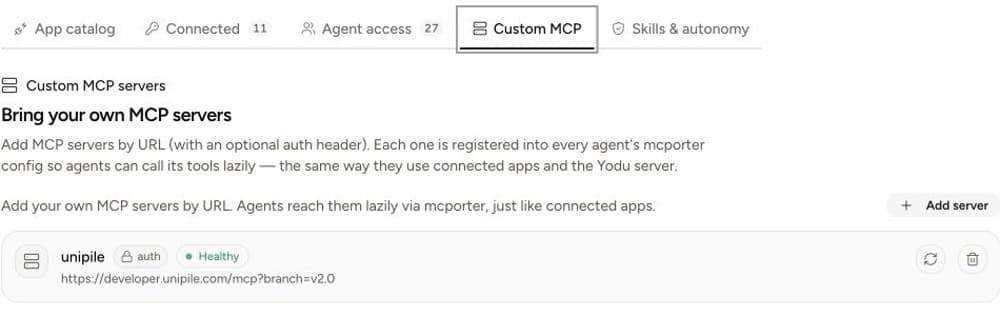
- Open Tool access → Custom MCP.
- Select Add server.
- Enter a recognizable name.
- Enter the server URL.
- Select Add header for each required static request header, if any.
- Save and wait for the health check.
- If the server requires OAuth, select Authenticate and continue to the provider.
The server row shows whether authentication is configured and whether the endpoint is healthy.
Vercel browser authorization
Vercel's official endpoint is https://mcp.vercel.com. For an existing project, https://mcp.vercel.com/<team>/<project> scopes the MCP session to that project. The OAuth consent screen can still display broader permissions and previously authorized teams; review it before allowing access. Do not revoke an existing Vercel authorization merely to troubleshoot a new workspace connection.
In the unreleased onboarding update, App catalog → Vercel offers this sign-in flow directly and keeps access-token entry as a fallback. After returning, check Custom MCP, re-test the server, and run a read-only employee check. Reaching the consent screen alone does not prove a connected account or successful deployment. See Vercel MCP and its project-specific setup.
Verify health
Use the re-test control to run the MCP health check again. A healthy state confirms that Yodu can reach the endpoint and complete the expected protocol check. It does not prove that every tool is safe or correctly scoped.
Test one read-only tool through an employee workflow before relying on tools that write; use Ask first and verify that the proposed write stops for approval before it runs.
OAuth authorization
Select Authenticate on the server row. Yodu follows the MCP 2025-11-25 authorization flow: protected-resource and authorization-server discovery, OAuth 2.1 authorization code, S256 PKCE, resource indicators, and refresh-token rotation.
The default is automatic. Yodu uses URL-based client metadata when the authorization server supports it, otherwise it uses dynamic client registration. If the provider requires a pre-registered OAuth application, expand Advanced client settings and enter:
- the provider-issued client ID
- the client secret, when the client is confidential
- optional space-separated scopes
none,client_secret_basic, orclient_secret_posttoken-endpoint authentication
Register these values with the provider when it asks for application URLs:
Redirect URI: https://<your-yodu-host>/api/tools/custom-mcp/oauth/callback
Client metadata URL: https://<your-yodu-host>/api/tools/custom-mcp/oauth/client-metadata.json
The connection belongs to the workspace, not the person who completes the browser flow. Every employee using that custom server shares the same scoped connection. Only workspace owners and admins can authenticate, re-authenticate, or remove it.
Access tokens, refresh tokens, client secrets, static request headers, and the upstream server URL stay encrypted on the Yodu server. Agent runtimes receive only their own signed Yodu gateway credential. Yodu refreshes an expiring token centrally and saves rotated refresh tokens before later calls use them.
If the row shows OAuth needs attention, select Re-authenticate. This is required when consent was revoked, a refresh token expired, or the provider changed the client registration.
Older connections may also require a fresh provider sign-in after a security update. If you use a pre-registered OAuth application, re-enter its client ID and secret under Advanced client settings. Confirm the provider before reconnecting if its authorization server has changed. You can still remove a connection that needs reauthentication.
Static request-header authorization
The custom-server form supports up to ten request headers. Header values are encrypted as workspace secrets and are not shown again after the server is saved. Yodu displays only the configured header names.
Existing custom servers that use the earlier single-header format continue to work. New and re-added servers use the multiple-header format automatically.
Plane with an access token
Plane's PAT-based MCP endpoint requires two headers. Add the server with:
URL: https://mcp.plane.so/http/api-key/mcp
Authorization: Bearer <Plane API key>
X-Workspace-slug: <workspace slug>
The workspace slug is the short identifier in the Plane workspace URL. For example, the slug in https://app.plane.so/acme/ is acme.
Prefer OAuth when the server offers it. Use the API-token endpoint only when static credentials are required, and rotate those credentials regularly.
Plane with OAuth
For Plane's OAuth MCP endpoint, add:
URL: https://mcp.plane.so/http/mcpLeave request headers blank, save, and select Authenticate. Plane publishes the OAuth metadata and scopes used by Yodu's automatic flow.
Design safer MCP tools
Good tool names expose one business action:
get_customer_usagesearch_contractsdraft_crm_notelist_open_invoices
Avoid broad tools such as run_sql, admin_action, or do_everything. Narrow tools are easier to review, approve, and troubleshoot.
Enable and test slowly
- Add the server and confirm healthy state.
- Leave the server enabled for one employee and disable its switch for the rest — a disabled custom server is removed from that employee's private registry entirely.
- Let the first external action stop at the approval gate and review it there; allow once rather than granting a session allowance.
- Assign one real task with known input.
- Review the output and source data.
- Enable the server for more employees only when the narrow workflow is reliable.
Troubleshooting
The server stays in checking state
Wait briefly, then use re-test. Confirm the endpoint is reachable over HTTPS.
The server is unhealthy
Check the URL, transport compatibility, request-header names and values, and server logs. Test the endpoint independently before retrying in Yodu.
Authenticate returns a client-registration error
The provider may not support dynamic or URL-based registration. Create an OAuth application with that provider, register Yodu's callback URI shown above, then retry with its client ID and optional client secret under Advanced client settings.
The server is healthy but the employee cannot use a tool
Confirm the server's switch is enabled for that employee and that the tool is exposed by the server. A disabled switch hides the server from the employee entirely.
The credential changed
For OAuth, use Re-authenticate. For static headers, remove and re-add the server with the new value, then re-test before running dependent work.
Remove a server
Review dependent employees and schedules first. Then use Remove on the server row. Removal immediately deletes the workspace credential and gateway access, best-effort revokes the provider token, and queues runtime cleanup for every employee. Keep task outputs and files that document earlier work.