
Model access
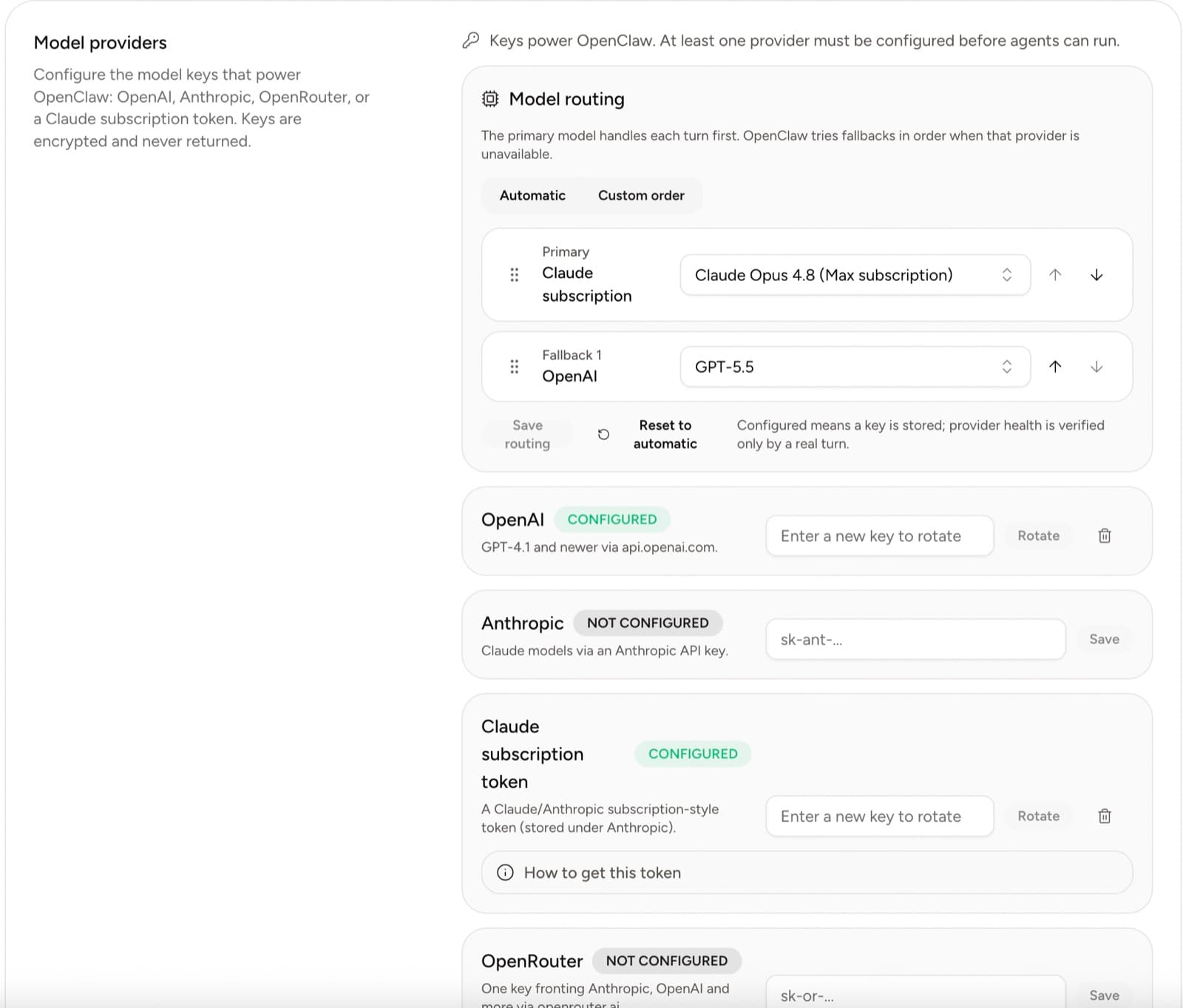
Configure OpenAI, Anthropic, supported Claude subscription access, or OpenRouter for a Yodu workspace and select models per employee.
Model access is configured once for the workspace. Individual AI employees can then use an available model through their channel or model policy.
Bring your Claude subscription
A supported Claude subscription can power your Yodu employees through the subscription connection. Yodu adds no per-token charge for work routed through it. Your subscription payment, usage limits and provider terms still apply. Shashank verifies the supported connection during setup; this does not mean unlimited use or free paid API models.
This differs from Platform MCP: subscription access powers the employees, while MCP client setup lets an external assistant operate supported Yodu tools.
Provider costs are separate
Yodu's founding subscription covers the platform and hosted service. Your connected AI provider, subscription and premium tools retain their own charges, limits and terms. We verify the supported connection during onboarding. Usage estimates are operational estimates, not the provider's final invoice.
Supported provider options
Open Organization settings → Yodu.
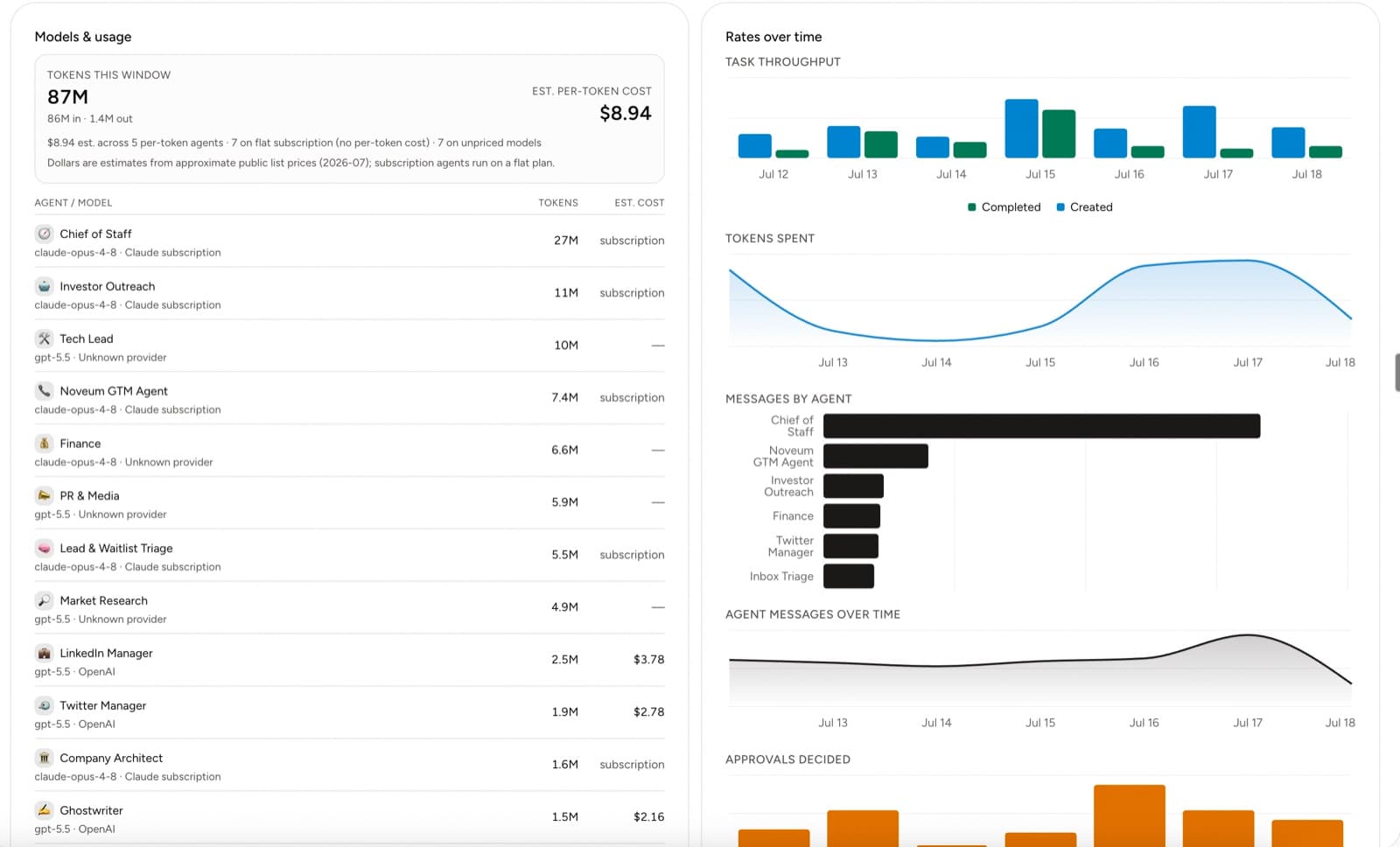
Once employees are running, the workspace overview breaks token usage and estimated cost down per employee and model, so routing decisions are grounded in what each role actually consumes:
| Provider | What to add |
|---|---|
| OpenAI | A project API key |
| Anthropic | An Anthropic API key |
| Claude subscription | A supported subscription-style token |
| OpenRouter | An OpenRouter API key |
Configure only providers your company is authorized to use.
Add provider access
- Open the Yodu settings page.
- Find the provider.
- Enter the new key or token.
- Save.
- Confirm the provider shows Configured.
Saved values are encrypted and not displayed again. The input remains available for replacing or rotating the secret.
Choose a model for an employee
Open the employee's channel or configuration controls and select a model exposed by a configured provider. Save the change.
The app applies the model change to that employee's running workspace. Allow about a minute for the runtime to reload before testing.
Use role requirements rather than a single company-wide default:
- research may favor deeper reasoning
- support may favor lower latency
- engineering may favor code performance
- routine scheduled work may favor predictable cost
Rotate access
Use the provider row to enter a replacement value, then select Rotate. Test one employee after rotation before relying on scheduled work.
Remove a provider only after checking which employee model policies depend on it.
First verification
- Select the intended model for one AI employee.
- Send a short test message.
- Confirm the response appears normally.
- Check that the employee and workspace runtime remain healthy.
- Run one representative task before expanding use.
Keep provider secrets out of work content
Never paste keys or subscription tokens into:
- employee chat
- memory documents
- task descriptions
- uploaded files
- configuration markdown
Use provider settings for secrets and use employee policy for instructions.
Troubleshooting
Provider remains not configured
Confirm the value matches the provider's expected format and save again.
Model is not available in the picker
Confirm the provider is configured, refresh the channel, and check the employee model policy.
The employee still uses the previous model
Wait for the running workspace to reload, then send a new message. Reopen the channel if the picker has stale state.
A rotated secret stops working
Restore working provider access, verify it with one employee, and pause dependent schedules until the test passes.